How to Change The Size of Virtual Memory (pagefile.sys) on Windows 8 or Windows Server 2012
On the Keyboard Press the WindowsKey + X then click System in the popup menu Tap or click Advanced system settings. You might be asked for an admin password or to confirm your choice. On the Advanced tab, under Performance, tap or click Settings. Tap or click the Advanced tab, and then, under Virtual […]
1.
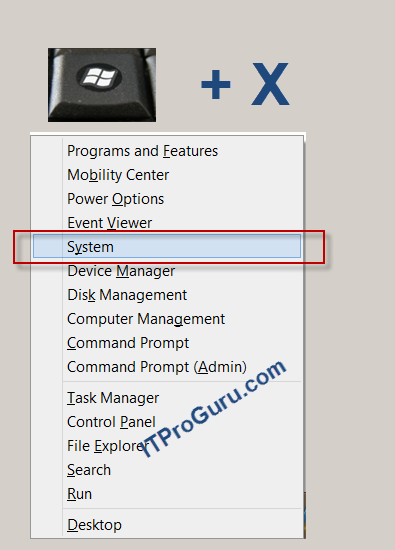
On the Keyboard Press the WindowsKey + X then click System in the popup menu
1.
Tap or click Advanced system settings.

You might be asked for an admin password or to confirm your choice.
1.
On the Advanced tab, under Performance, tap or click Settings.
1.
Tap or click the Advanced tab, and then, under Virtual memory, tap or click Change.
1.
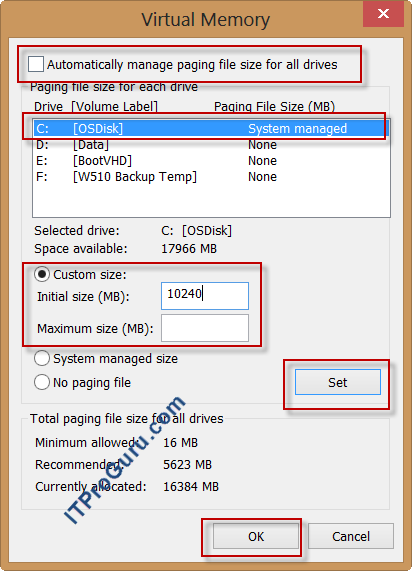
Clear the Automatically manage paging file size for all drives check box.
1.
Under Drive [Volume Label], tap or click the drive that contains the paging file you want to change.
1.
Tap or click Custom size, enter a new size in megabytes in the Initial size (MB) or Maximum size (MB) box, tap or click Set, and then tap or click OK.

Note
Increases in size usually don’t require a restart for the changes to take effect, but if you decrease the size, you’ll need to restart your PC.