Published: December 7, 2025 Author: Dan Stolts | AI Expert Reading Time: 10 minutes Updated: December 7, 2025
The $130 Mistake I Almost Made
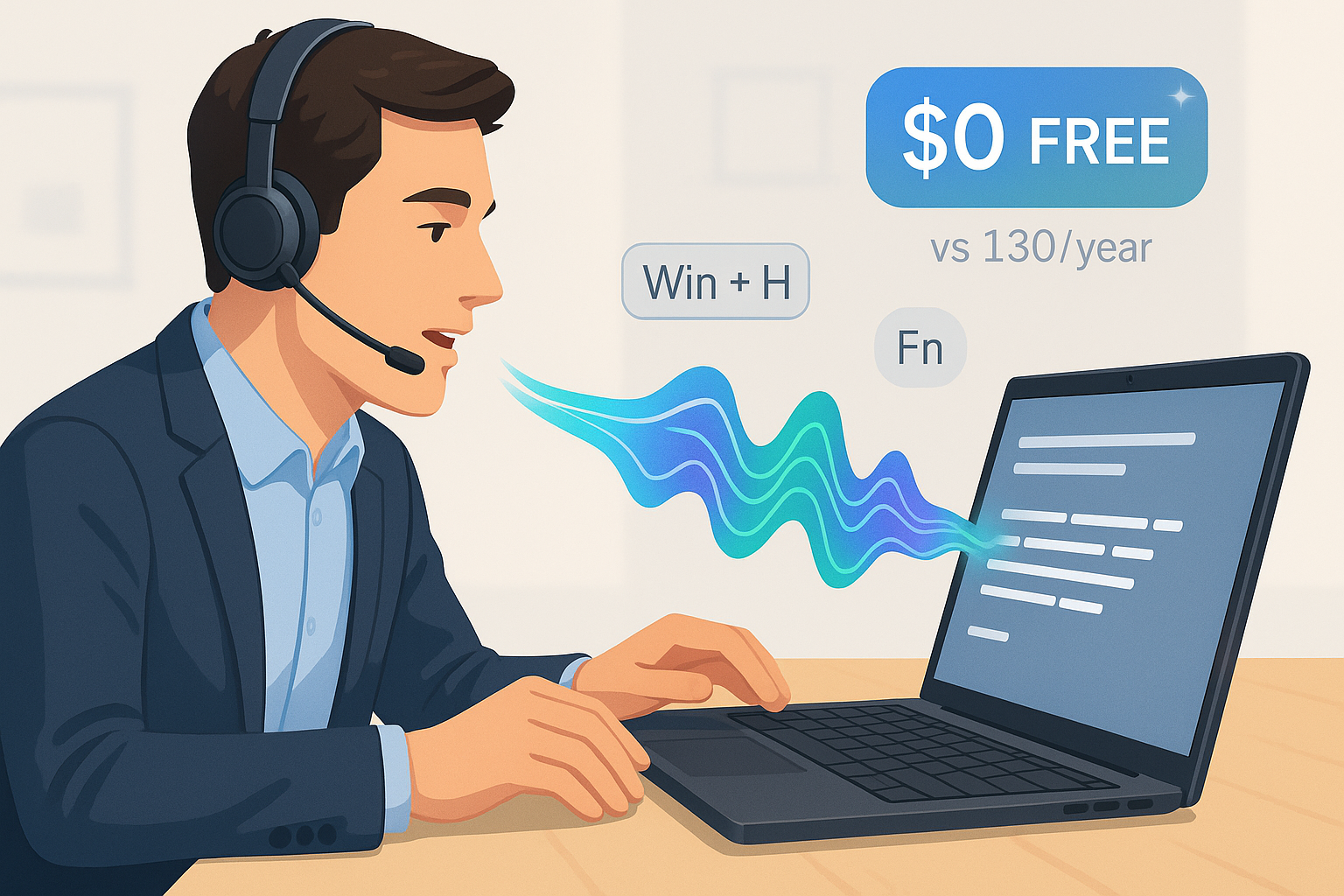
Last week, I was seriously considering spending $130/year on OpenAI’s Whisper API for voice-to-text transcription. I was tired of typing. My fingers ached from hours of documentation, emails, and code comments. I thought, “There has to be a better way.”
I started researching premium voice-to-text solutions:
- OpenAI Whisper: $0.006/minute ($130/year for 1 hour/day)
- Dragon NaturallySpeaking: $150-$500 one-time
- Otter.ai: $100-$200/year
I had my credit card ready. Then I discovered something that made me laugh out loud:
I already had a professional-grade voice-to-text system built into my computer. For free.
Whether you’re on Windows 11 or macOS, you have powerful voice typing built right in. No downloads. No subscriptions. Just press a couple keys and start talking.
And chances are, you’ve never used it.
The Power of Two Keys
Windows: Press Win + H
Mac: Press Fn Fn (tap Fn key twice) or Ctrl + Cmd + Space
That’s it. Press those keys in any text field—email, Word, browser, Slack, VS Code, anywhere—and your computer starts listening. You speak, it types. Instantly. Accurately. Free.
I felt like I’d discovered a secret cheat code that both Microsoft and Apple had been hiding in plain sight.
Why I Almost Missed It (And You Might Too)
Full disclosure: I type 70-90 words per minute. I’m fast. Really fast. So for years, I dismissed voice typing as “slower than just typing it myself.”
But here’s what changed: I can talk at 125-150 words per minute. Almost double my typing speed.
The math suddenly made sense. Even accounting for corrections, voice typing could save me 30-40% of my time.
But first, I had to fix a critical mistake…
I’d tried voice typing before and thought it “didn’t work.” Turns out, I was using the wrong microphone input. My laptop was listening to the built-in mic (which picks up keyboard noise, fan noise, everything) instead of my headset.
Five-second fix:
Windows:
- Right-click the speaker icon in your taskbar
- Click Sound settings
- Under Input, select your headset/external microphone
- Test the volume levels while speaking
Mac:
- Click → System Settings → Sound
- Click Input tab
- Select your headset/external microphone
- Speak normally and watch the input level bars
Suddenly, my “broken” voice typing became flawless.
Real-World Results: My First Hour
After fixing my microphone settings, I spent an hour testing Windows Voice Typing for real work. Here’s what I dictated:
- 3 emails (instead of typing for 20 minutes)
- Documentation updates (2 pages of technical docs in 10 minutes)
- Meeting notes (captured faster than I could type)
- Teams messages (rapid-fire responses to my team)
Time saved: ~40% compared to typing Cost: $0 Accuracy: Surprisingly good (85-90% with my normal speaking pace)
I was hooked.
The Free vs. Paid Breakdown
Since I’d already researched the premium options, I created this comparison:
Monthly Cost Comparison (1 Hour/Day Usage)
| Solution | Cost/Month | Quality | Real-Time | Works Offline | Works Everywhere |
|---|---|---|---|---|---|
| Windows Voice Typing | $0 | Good (85-90%) | ✅ Instant | ❌ No | ✅ Yes |
| Mac Dictation | $0 | Good (85-90%) | ✅ Instant | ⚠️ Limited | ✅ Yes |
| Microsoft 365 Dictation | $0 | Good (85-90%) | ✅ Instant | ❌ No | ⚠️ Office only |
| Google Docs Voice | $0 | Good (85-90%) | ✅ Instant | ❌ No | ⚠️ Google only |
| OpenAI Whisper API | $10.80 | Excellent (95%) | ❌ 2-5s delay | ❌ No | ⚠️ Needs setup |
| Dragon Professional | $50 (1st month) | Excellent (95%+) | ✅ Instant | ✅ Yes | ✅ Yes |
Annual Cost Comparison
| Daily Usage | Windows/Mac (FREE) | OpenAI Whisper | Dragon Professional |
|---|---|---|---|
| 30 min/day | $0 | $64.80 | $500 (one-time) |
| 1 hour/day | $0 | $129.60 | $500 (one-time) |
| 2 hours/day | $0 | $259.20 | $500 (one-time) |
| 4 hours/day | $0 | $518.40 | $500 (one-time) |
Bottom line: Unless you’re transcribing hours of recorded audio daily or need 95%+ accuracy for medical/legal work, built-in voice typing (Windows or Mac) is the smart choice.
How to Start Using Voice Typing Today
Step 1: Set Up Your Microphone (Critical!)
This is where most people fail.
Microphone Quality Matters: I tested three different microphones:
- ✅ Desktop USB mic – Excellent results (highly recommended)
- ✅ Headset with boom mic – Great results
- ⚠️ Laptop built-in mic – Poor results (picks up fan noise, keyboard clicks, room echo)
Bottom line: Invest $30-50 in a decent USB microphone or headset. It makes a huge difference.
- Plug in a headset with a microphone (or use a USB desktop microphone)
- Laptop built-in mics pick up too much noise
- External mics/headsets isolate your voice
- Desktop mics work great for stationary setups
- Set it as your default input device:Windows:
- Right-click speaker icon → Sound settings
- Under Input, select your headset/mic
- Click Device properties → Set volume to 80-90%
- Speak normally and watch the test bar (should hit 60-80%)
- Click → System Settings → Sound
- Click Input tab
- Select your headset/mic from the list
- Speak normally and watch the input level (should hit 60-80%)
- Test it:
- Windows: Click Start a test
- Mac: Speak and watch the input level bars
- Say “Testing one two three”
- If the bar moves, you’re good to go
Step 2: Enable Dictation (Mac Only)
Mac users: You need to enable dictation first.
- Click → System Settings → Keyboard
- Scroll down to Dictation and turn it on
- Choose Enhanced Dictation for offline support (optional but recommended)
Windows users: Skip to Step 3 (it’s already enabled!)
Step 3: Learn the Keyboard Shortcut
Windows: Win + H = Start voice typing Mac: Fn Fn (tap Fn key twice) or Ctrl + Cmd + Space
Press it in any text field. Seriously, try it right now:
- Windows: Open Notepad, press Win + H
- Mac: Open TextEdit, press Fn Fn
- Say “This is amazing”
- Watch it type
Step 4: Master Punctuation Commands
This is what separates amateur from pro voice typers:
"period" → .
"comma" → ,
"question mark" → ?
"exclamation point" → !
"new line" → (line break)
"new paragraph" → (paragraph break)
"colon" → :
"semicolon" → ;
"open quote" ... "close quote" → "..."
Example dictation:
“Send the report to John comma then schedule a meeting period New line Thanks comma Dan”
Result:
Send the report to John, then schedule a meeting. Thanks, Dan
Step 5: Learn Error Correction
- “Delete that” – Removes last phrase
- “Go to start of sentence”
- “Go to end of sentence”
- “Select [word]” – Highlights a word for editing
Pro Tips for Maximum Productivity
1. Use a Quality External Microphone
Best investment for voice typing. Based on my testing:
Recommended setups:
- Desktop USB mic ($30-80) – Best for home office/stationary work
- USB headset with boom mic ($30-50) – Best for mobility/meetings
- Avoid laptop built-in mic – Picks up fan noise, keyboard clicks, poor accuracy
2. Speak Naturally, Not Robotically
Don’t. Talk. Like. This.
Talk like you’re explaining something to a colleague. Natural pace, natural tone. The AI handles it better.
3. Keep Microphone 6-12 Inches From Mouth
Too close = muffled Too far = picks up room noise
4. Edit While You Go (Use Hybrid Method)
- Dictate sentences
- Use keyboard for quick edits (fixing a word)
- Continue dictating
Don’t try to dictate 100% perfectly. Hybrid typing + voice is fastest.
5. Use It for Emails First
Start here. Email is forgiving. You’re writing conversationally anyway.
Once comfortable, expand to:
- Documentation
- Code comments
- Meeting notes
- Slack/Teams messages
6. Master the Meeting Workflow
Voice typing during meetings is a superpower. Here’s what I tested and confirmed works:
Scenarios that work perfectly: ✅ Teams meeting + dictating chat messages ✅ Zoom meeting + taking notes ✅ Recording + dictating + screen sharing (all at once!) ✅ Any video conference platform
The trick: Mute your meeting mic first, then dictate. Your voice goes to text, not to meeting participants.
When Premium Voice-to-Text IS Worth It
I’m not saying free is always best. Here’s when you should consider paid options:
Consider Dragon Professional ($500 one-time) if:
- You dictate 4+ hours/day professionally
- You need medical/legal-grade accuracy (98%+)
- You need offline capability (remote locations)
- You want custom vocabulary (industry-specific terms)
ROI: If you save 2 hours/week, pays for itself in ~3 months
Consider OpenAI Whisper API ($130/year) if:
- You transcribe recorded meetings/interviews (not real-time typing)
- You need multi-language support (English + Spanish + French)
- You need speaker identification (who said what)
- You’re processing hours of audio files
ROI: If you transcribe 10+ hours of recordings/month, worth it
Stick with Built-in Voice Typing (FREE – Windows/Mac) if:
- You dictate <2 hours/day
- You use it for emails, docs, messages
- 85-90% accuracy is acceptable
- You have internet connection
- You don’t need speaker diarization
ROI: Infinite (it’s free!)
My Personal Results After 1 Week
I’ve been using voice typing (primarily on Windows, tested on Mac too) exclusively for:
- All emails (20-30/day)
- Documentation updates
- Slack messages
- Meeting notes
- Blog post drafts (like this one!)
Time saved: ~6-8 hours/week (even at 70-90 WPM typing speed!) Accuracy: 85-90% (good enough with quick edits) Cost: $0 Frustration level: Down 70% Finger pain: Gone
Would I pay for Whisper now? Nope. Built-in voice typing does everything I need.
The Catch (There’s Always a Catch)
Built-in voice typing isn’t perfect:
Limitations:
- Requires internet connection (Windows: cloud processing | Mac: Enhanced Dictation offers offline)
- English-focused (other languages have mixed results)
- No speaker diarization (can’t identify multiple speakers)
- 85-90% accuracy (not 95%+ like premium tools)
- Privacy concern (audio sent to Microsoft/Apple servers)
When It Struggles:
- Heavy background noise (coffee shops, open offices)
- Strong accents (improves over time as it learns)
- Technical jargon (can be trained with corrections)
- Very quiet speaking (needs decent volume)
Workaround: Use a good headset, speak clearly, minimize background noise.
Action Plan: Start Today
5-Minute Setup:
- ✅ Plug in a headset (or USB microphone)
- ✅ Set it as default input (Sound settings)
- ✅ Test microphone levels (Speak and watch the bar)
- ✅ Enable dictation (Mac only: System Settings → Keyboard → Dictation)
- ✅ Press Win + H (Windows) or Fn Fn (Mac) (in any text field)
- ✅ Say “This is my first voice typing test period”
First Week Goals:
- Day 1-2: Use for all emails
- Day 3-4: Add Slack/Teams messages
- Day 5-6: Try meeting notes
- Day 7: Write a document start-to-finish by voice
After One Week: Evaluate if you need premium tools or if free is enough.
(Spoiler: For 80% of people, free is enough.)
The Bottom Line
I almost spent $130/year on OpenAI Whisper for something I already had for free. Don’t make my mistake.
Built-in Voice Typing (Windows & Mac) is:
- ✅ Free (forever)
- ✅ Fast (instant transcription – faster than typing even at 70-90 WPM!)
- ✅ Accurate (85-90% is plenty)
- ✅ Available everywhere (any text field)
- ✅ Easy to use (Win + H or Fn Fn)
- ✅ Better than paying for AI (unless you need advanced features)
Try it for one week. If it doesn’t save you hours and reduce typing strain, you can always explore premium options.
But I’m betting you’ll never look back.
FAQ: Common Questions
Q: Does it work during Teams/Zoom meetings when I want to type in chat?
A: YES! I tested this extensively in multiple scenarios:
✅ Teams meetings – Works perfectly ✅ Zoom meetings – Works perfectly ✅ While recording – Works perfectly ✅ While screen sharing – Works perfectly ✅ All simultaneously – Still works!
Pro tip: Mute your Teams/Zoom mic before using voice typing, otherwise participants will hear you dictating. The voice typing uses your system microphone separately from meeting audio.
Workflow:
- Join Teams/Zoom meeting
- Mute your mic in the meeting (Ctrl + Shift + M in Teams)
- Click in chat box or any text field
- Press Win + H (Windows) or Fn Fn (Mac)
- Dictate your message
- Everyone sees your typed message, doesn’t hear you dictating
This is a game changer for quick meeting notes and chat responses!
Q: I type 70+ WPM. Will voice typing still save me time?
A: YES! I type 70-90 WPM myself and still save 30-40% time. Why? Because:
- You speak 125-150 WPM (almost double)
- Less finger fatigue = longer productive sessions
- Easier to compose thoughts while talking than typing
- Great for long-form content (emails, docs, reports)
Even fast typers benefit!
Q: What if I have a strong accent?
A: Voice typing improves over time as it learns your speech patterns. Tips:
- Speak clearly but naturally
- Use a good headset (critical!)
- Correct errors as you go (it learns)
- Try “Enhanced Dictation” on Mac for better accuracy
Most accents work fine after initial adjustment period.
Q: Can I use it offline?
A:
- Windows: Requires internet (cloud-based)
- Mac: Enable “Enhanced Dictation” for offline support
Q: Does it work in my language?
A: Both Windows and Mac support multiple languages, but English works best. Check your system settings for available languages.
Your Turn
Challenge: Use voice typing for every email you send today. Just today. See how it feels.
Keyboard shortcut:
- Windows: Win + H
- Mac: Fn Fn
Cost: $0 Time to try: 30 seconds
Then come back and tell me: Did it change your workflow? Did you save time? Or did you find limitations that require premium tools?
I’d love to hear your results.
Happy dictating!
Related Articles on ITProGuru
Want to dive deeper into AI productivity and tools? Check out these guides:
- The Ultimate AI Assistant Showdown – Compare ChatGPT, Claude, and other AI tools for your business needs
- Demystifying AI’s Inner Workings – Understand how AI processes your voice input (tokens and context explained)
- Supercharge Your Laptop with AI – Performance optimization tips for better AI experiences
- Boost Productivity with Sysinternals Suite – More Windows productivity tools and utilities
- Debunking AI Myths – Separate AI fact from fiction for small businesses
Resources
- Windows Voice Typing Official Guide: Microsoft Support
- Microphone Setup Guide: Microsoft Audio Troubleshooting
- OpenAI Whisper (for advanced users): OpenAI Documentation
- Dragon Professional (for power users): Nuance Website
About the Author
Dan Stolts is an AI Expert, systems architect, software developer, and productivity coach who builds AI tools for businesses all over the world. He runs ITProguru.com, where he shares practical tech tips for developers and IT professionals. When he’s not talking to his computer (literally), he’s building AI-powered apps and helping teams work smarter.
Connect: ITProguru.com | LinkedIn | GitHub
Comments? Questions? Tips? Drop them below! I read every comment and love hearing about your voice typing experiences.
Dictated (mostly) using Windows Voice Typing (and AI :). Edited on keyboard. Total time: 12 minutes. Would have taken 120+ minutes typing manually and not using AI. Proof that this stuff works. 😊