Installing Windows Server 2016 on Bare Metal Step-By-Step
Insert Windows Server 2016 DVD and boot your computer from the DVD. If you do not have the media, you will need to download. See https://www.microsoft.com/en-us/evalcenter/evaluate-windows-server-technical-preview for the Technical Preview. You could also download from MSDN.MICROSOFT.COM or other subscription service. You may also opt to create a bootable USB drive to use as an ISO. […]
Insert Windows Server 2016 DVD and boot your computer from the DVD. If you do not have the media, you will need to download. See https://www.microsoft.com/en-us/evalcenter/evaluate-windows-server-technical-preview for the Technical Preview. You could also download from MSDN.MICROSOFT.COM or other subscription service. You may also opt to create a bootable USB drive to use as an ISO. You can get step by step instructions from http://itproguru-app.azurewebsites.net/expert/2016/05/create-bootable-windows-server-2016-usb-thumb-drive-for-installing-os/
Watch the recovered video -- originally hosted on Channel 9, now available on Microsoft Learn Shows.
*Step-By-Step…*
Image / FYI Information
Description / Step breakdown
1. Windows Server 2016 Technical Preview 5
[
](/wp-content/uploads/2016/05/Windows2016Install01.jpg)
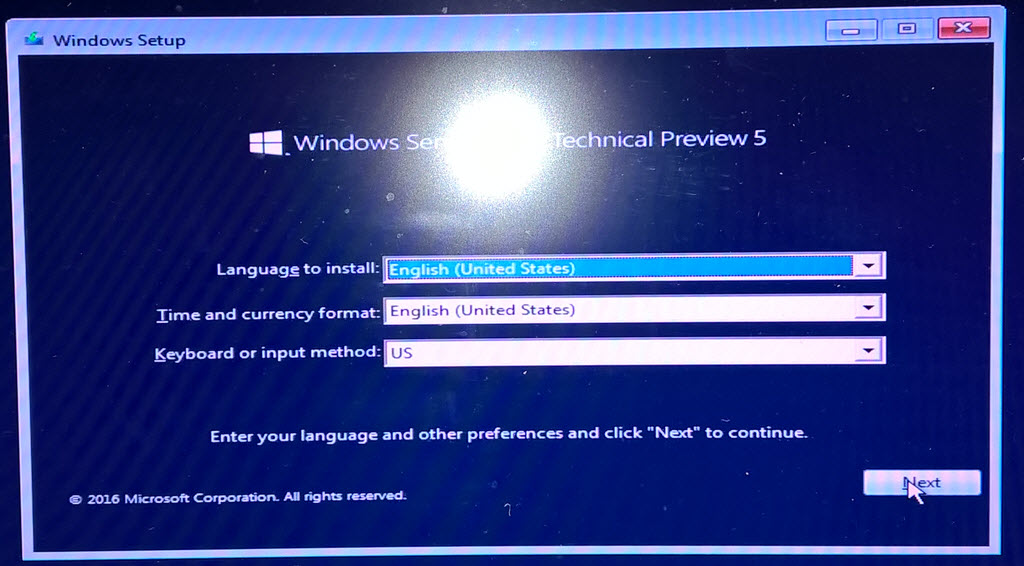
Insert Windows Server 2016 DVD and boot your computer from the DVD. Boot to the DVD/USB ISO (you may have to go into bios or interrupt boot to boot from external media).
Click the Next Button
1. Install Now
[
](/wp-content/uploads/2016/05/Windows2016instal02.jpg)
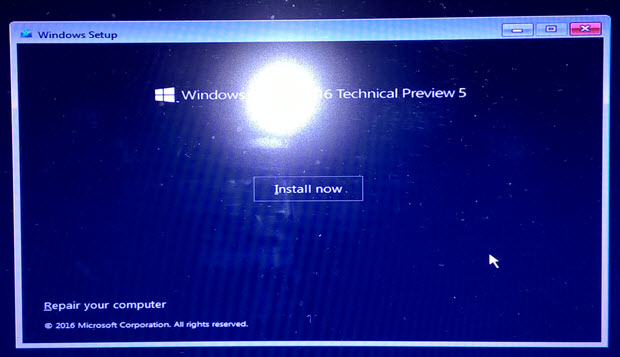
Note: the “Repair your computer” link
Click the Install now Button
1. Activate
[
](/wp-content/uploads/2016/05/Windows2016instal03-activate.jpg)
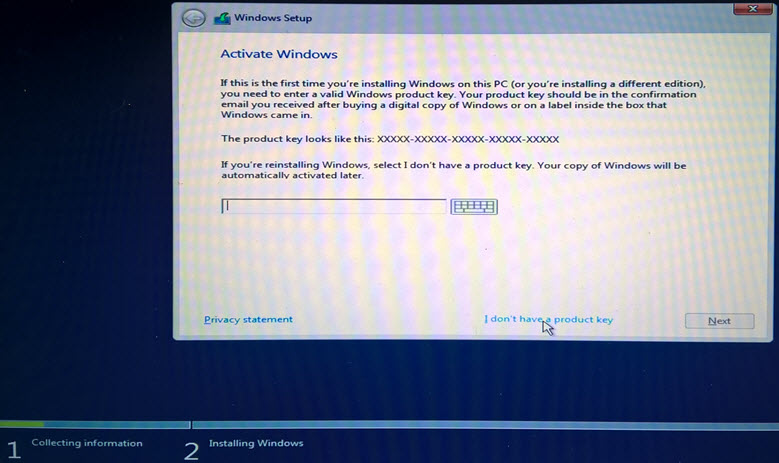
Optionally, enter your product key then Next or click I don’t have a product key
1. Accept Terms of Use
[
](/wp-content/uploads/2016/05/Windows2016instal05-Agreement.jpg)
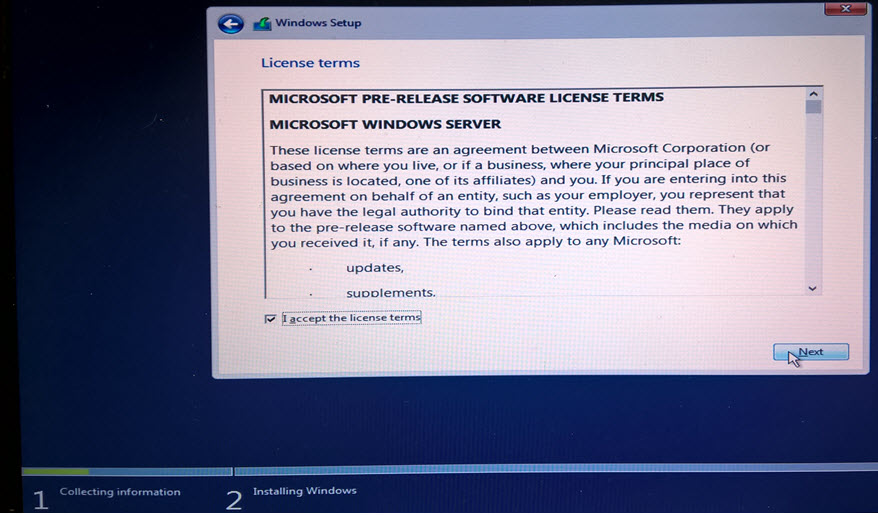
READ the license terms. Click on I accept the license terms then Click the Next button.
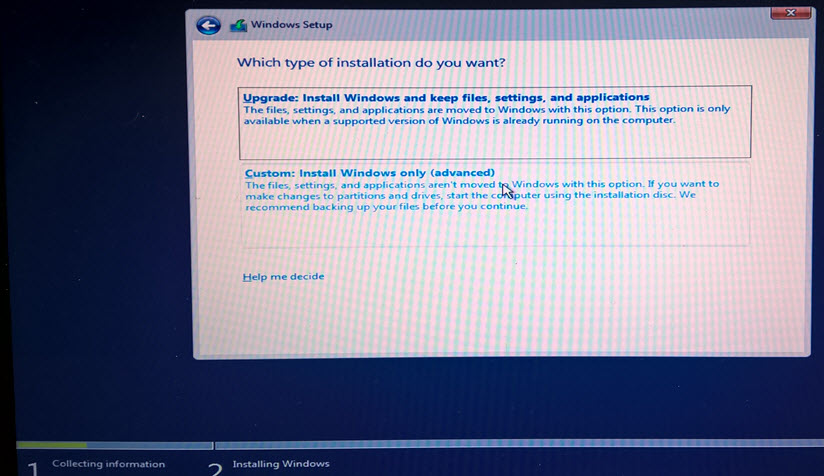
1. Custom Install
[
](/wp-content/uploads/2016/05/Windows2016instal06-New.jpg)
The Evaluation DVD may have more options than TechNet/MSDN DVD. Make sure you choose “Windows Server 2016 Standard/or/Datacenter (Desktop Experience).
NOTE: DEFAULTS TO “Server core Installation” (no Desktop Experience)Click the Next Button
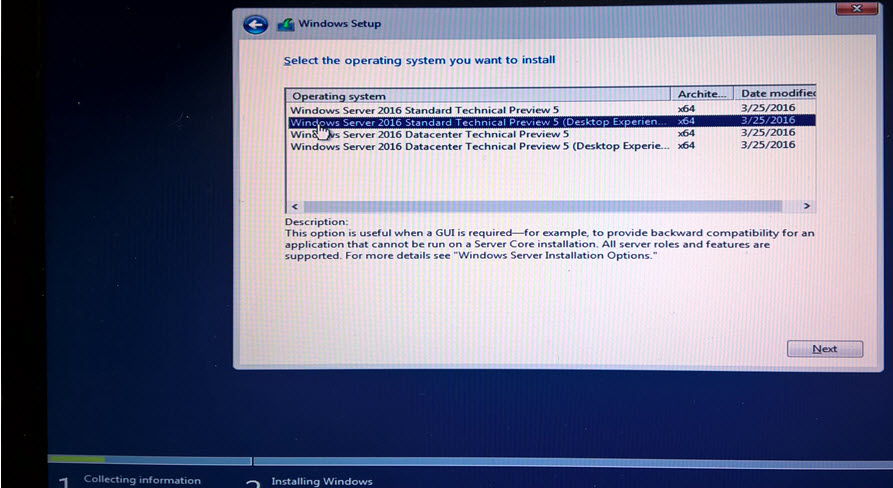
1. Select OS
[
](/wp-content/uploads/2016/05/Windows2016instal04-OS.jpg)
The Evaluation DVD may have more options than TechNet/MSDN DVD.
Make sure you choose Windows Server 2016 Standard/or/Datacenter (Desktop Experience)NOTE: DEFAULTS TO “Server core Installation” (no Desktop Experience)Click the Next Button
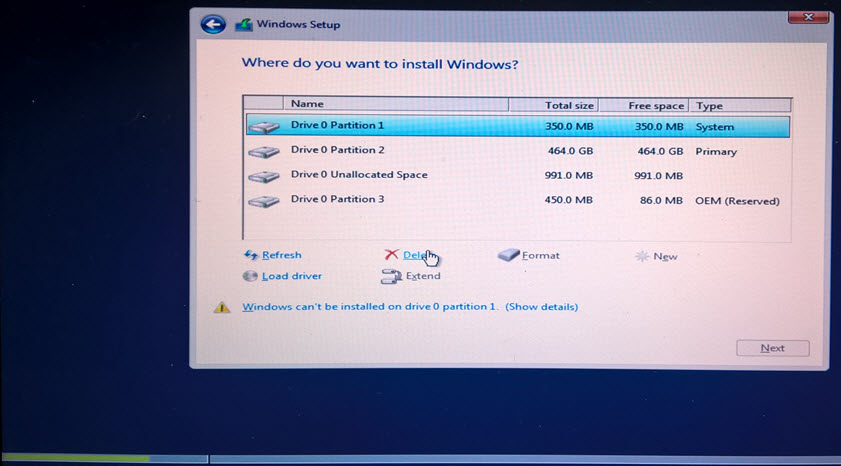
1. Where? Delete Existing Partitions
[
](/wp-content/uploads/2016/05/Windows2016instal007-deletepart.jpg)
NOTICE the following steps WILL wipe out all data on your drive. These instructions are for a bare metal install. If you do not want to wipe your drive, cancel the install and follow instructions at:
http://itproguru-app.azurewebsites.net/expert/2013/01/installing-windows-server-2012-vhd-and-metal-hands-on-lab-halclyde-johnson/#sthash.DCYDHCfW.dpuf
You should remove any secondary or external drives to prevent accedental deletion of data.
Click each of the listed Drive 0 drives then click the delete button. Im prompted that “this partition might contain important files or applications from your computer manufacturer. if you delete this partition, any data stored on it will be lost” If you are sure you want to wipe this drive, click OK.
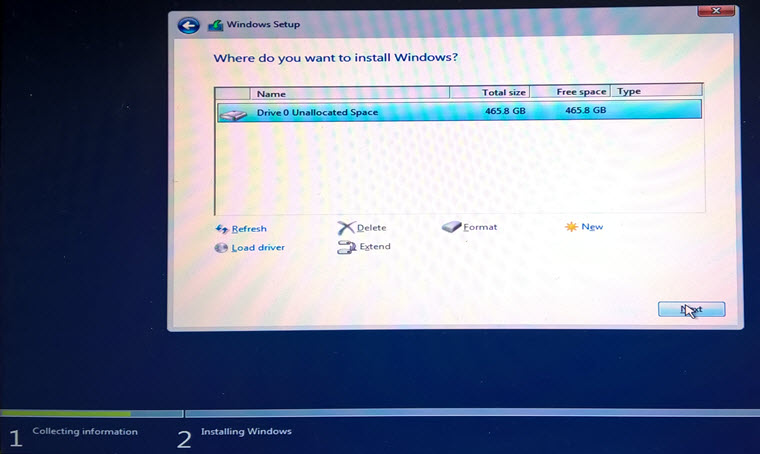
1. Where? New Partition, do the install
[
](/wp-content/uploads/2016/05/Windows2016instal08-newpart.jpg)
Click Drive 0 Unallocated Space then click Next
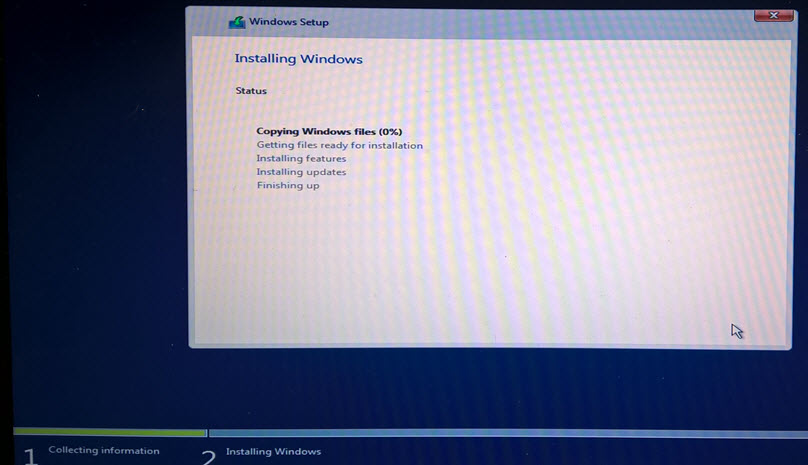
1. Install Underway
[
](/wp-content/uploads/2016/05/Windows2016instal09-working.jpg)
Give it some time to finish…
The system will automatically reboot when finished. If you walk away, you may have to remove the USB or DVD and reboot so it boots to the hard drive instead of the installation media.
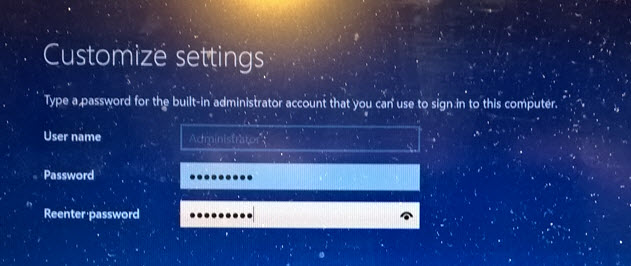
1. Set Administrator Password
[
](/wp-content/uploads/2016/05/Windows2016instal10-paasword.jpg)
Enter a password for the administrator account into the password adn Reenter password fields then click Finish
1. Lock Screen
[

](/wp-content/uploads/2016/05/Windows2016instal11-Lockscreen.jpg)
Press [CTRL-ALT-DEL] to bring up the login screen
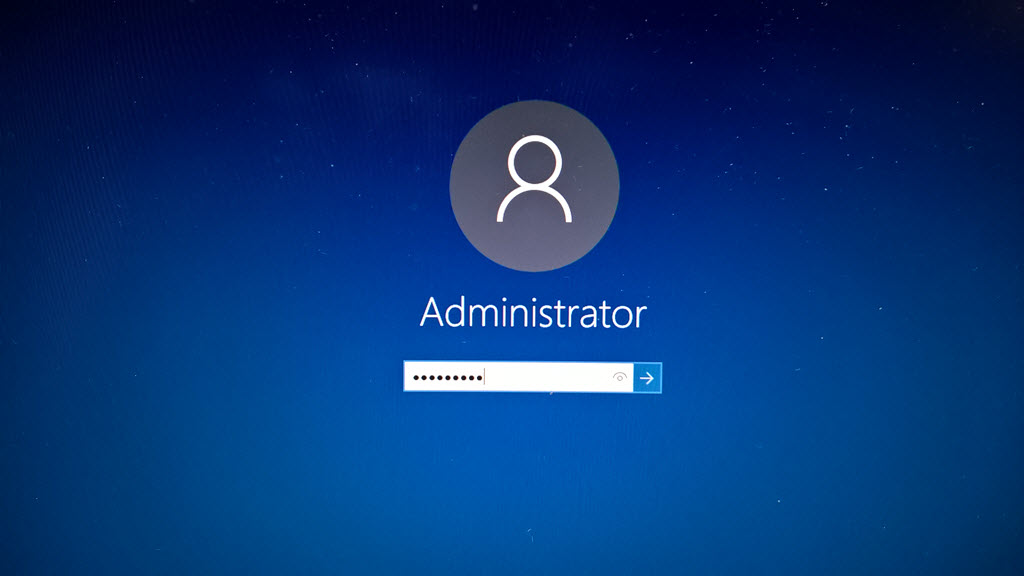
1. Login
[
](/wp-content/uploads/2016/05/Windows2016instal12-Login.jpg)
type in your password and press [ENTER] to loginif you are on a wired network, you will be asked Do you want to allow your PC to be discoverable by other PCs and devices on this network? If you are on a priviate network you should select Yes.
Notice server manager is automatically opened for you.
In the video we also cover creating a new administrator user