How To Get The Most Out Of Your Windows 8.1 Keyboard And Mouse – Shortcuts Galore
How do you navigate in a touch world without a touch device? I am glad you asked. This post will address that question in great detail but we will also look at all the other great things you can do with keyboard and mouse shortcuts. Read It, to understand what you have been missing. Bookmark […]
How do you navigate in a touch world without a touch device? I am glad you asked. This post will address that question in great detail but we will also look at all the other great things you can do with keyboard and mouse shortcuts. Read It, to understand what you have been missing. Bookmark it, to use as a reference while you get accustomed to the incredible power you still have at your finger tips without ever leaving home row! We will start off with what is new with Windows 8.1 but keep reading because there are probably plenty of other shortcuts that have been around for years and you simply were not aware of them. Lastly, if there are other shortcuts that you know about, please add a comment to share with the world.
Most of what you know about using a mouse and keyboard with Windows has stayed the same, especially in the desktop. Here are some ways to use both new and familiar Windows features with a mouse and with keyboard shortcuts. Please also note that there are often multiple ways to perform the same action. I will be giving you more than one method to perform an action in some cases but in many cases there are more more ways to perform the same action…
Mouse and keyboard: What’s new in Windows
Applies to Windows 8.1, Windows RT 8.1
To do this With a mouse With a keyboard
To do this
Get back to the Start screen.
With a mouse
Point to the lower-left corner and click it.
With a keyboard
Windows logo key

To do this
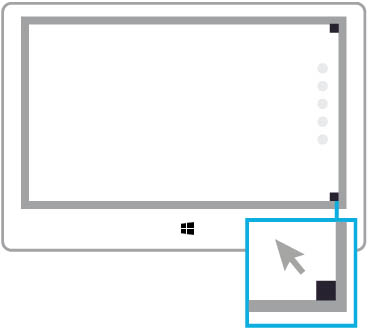
Open the charms (Search, Share, Start, Devices, and Settings).
With a mouse
Point to the upper-right or lower-right corner to see the charms (try moving the mouse pointer so far into the corner that it disappears). When the charms appear, move up or down the edge and click the one you want.
With a keyboard
All charms:
Windows logo key
+C
Search charm:
Windows logo key
+S
Share charm:
Windows logo key
+H
Start charm (Start Menu):
Windows logo key
Devices charm:
Windows logo key
+K
Settings charm:
Windows logo key
+I
To do this
Search your PC (apps, settings, and files), the web, or within an app.
With a mouse
Point to the upper-right corner (try moving the mouse pointer so far into the corner that it disappears). When the charms appear, move down the edge, click Search, and then enter your search term.
If you want to see a list of all the apps on your PC, click the down arrow in the bottom-left corner of the Start screen.
With a keyboard
If you’re on the Start screen, start typing your search term.
Open the Search charm: Windows logo key
+S
Search within the app you’ve got open: Windows logo key
+Q
Search settings: Windows logo key
+W
**Search files: ** Windows logo key
+F
To do this
Get to commands and context menus in an app.
With a mouse
Right-click within the app, then click the command you want. Or, right-click an item to see the options specific to that item.

With a keyboard
Within an app: Windows logo key
+Z
To do this
Switch between open apps.
With a mouse
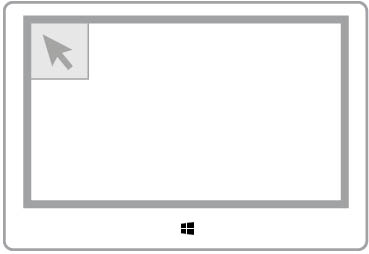
To switch to your most recently used app, point to the upper-left corner (try moving the mouse pointer so far into the corner that it disappears). When the previous app appears, click the corner.
To switch to a different app, point to the upper-left corner and then move down the edge. When the other apps appear, click the one you want.
With a keyboard
Windows logo key
+Tab: Switches between apps and the desktop
Alt+Tab: Switches between all apps, including desktop apps
To do this
Use up to four apps side by side.
Notes:
-
The Start screen can’t be used side by side with another app.
-
Your screen resolution must be at least 1024 x 768 to have multiple windows and apps on your screen at the same time. To check this setting, open the Settings charm, click Change PC settings, click PC and devices, and then click Display.
With a mouse
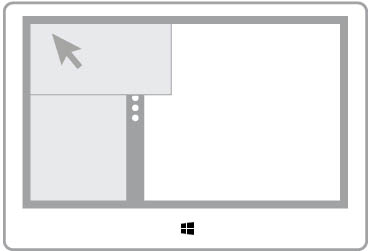
Drag your app from the top of the screen and place it on the left or right side. Then, go to the Start screen and click another app.
If you already have two apps open side by side, you can insert the app on the left, right, or middle, or replace one of the currently open apps.
You can also point to the upper-left corner and then move the pointer down to see a list of apps you’ve used recently. Click and drag the app to insert it.
With a keyboard
Windows logo key
+Period , then Left or Right Arrow
To do this
Open the desktop.
With a mouse
Go to the Start screen, and then click the Desktop tile.
With a keyboard
Windows logo key
+D
or type Desktop press enter on Start screen
To do this
Zoom in or out on Start.
With a mouse
On Start, click the icon

in the lower-right corner or Ctrl+mouse wheel to zoom out. Click anywhere to zoom back in.
With a keyboard
Ctrl+Plus sign to zoom in
Ctrl+Minus sign to zoom out
To do this
Close an app.
With a mouse
Point to the top edge of the screen, and then drag the app to the bottom of the screen.
You can also close apps you’ve used recently by pointing to the upper-left corner and then moving down the edge. Right-click the one you want, and then click Close.
With a keyboard
Windows logo key
+Down Arrow
To do this
Shut down your PC.
With a mouse
Point to the lower-right corner (try moving the mouse pointer so far into the corner that it disappears). When the charms appear, move up the edge, and then click Settings. Click Power, and then choose a shutdown option.
With a keyboard
1.
Press Ctrl+Alt+Del.
1.
Use the Tab key to move to the Power icon, and then press Enter. A list of shutdown options appears.
1.
Use the up or down arrow keys to get to the option you want.
1.
Press Enter.
To do this
Move an app to a different monitor
Click the Title bar (or the top of the app for Windows 8 apps) and drag the app to the desired monitor. Works for the start screen too!
With a keyboard
Windows logo key
+Left or Right Arrow
Now, Let’s drive this whole keyboard thing home.
Shortcut Keys That Use The Windows Logo Key:
The following table contains keyboard shortcuts that use the Windows logo key
.
Press this key To do this
Windows logo key
+F1
Open Windows Help and Support
Windows logo key
Display or hide the Start screen
Windows logo key
+B
Set focus in the notification area
Windows logo key
+C
Open the Charms
Windows logo key
+D
Display and hide the desktop
Windows logo key
+E
Open File Explorer
Windows logo key
+F
Open the Search charm and search for files
Windows logo key
+H
Open the Share charm
Windows logo key
+I
Open the Settings charm
Windows logo key
+K
Open the Devices charm
Windows logo key
+L
Lock your PC or switch people
Windows logo key
+M
Minimize all windows
Windows logo key
+O
Lock device orientation
Windows logo key
+P
Choose a presentation display mode
Windows logo key
+Q
Open the Search charm to search everywhere or within the open app (if the app supports app search)
Windows logo key
+R
Open the Run dialog box
Windows logo key
+S
Open the Search charm to search Windows and the web
Windows logo key
+T
Cycle through apps on the taskbar
Windows logo key
+U
Open Ease of Access Center
Windows logo key
+V
Cycle through notifications
Windows logo key
+Shift+V
Cycle through notifications in reverse order
Windows logo key
+W
Open the Search charm and search for settings
Windows logo key
+X
Open the Quick Link menu One of my favorites!!!!
[

]()
Windows logo key
+Z
Show the commands available in the app
Note
-
You can also see some settings and options by going to the Settings charm when the app is open.
Windows logo key
+,
Temporarily peek at the desktop
Windows logo key
+Pause
Display the System Properties dialog box
Windows logo key
+Ctrl+F
Search for PCs (if you’re on a network)
Windows logo key
+Shift+M
Restore minimized windows on the desktop
Windows logo key
+number
Open the desktop and start the app pinned to the taskbar in the position indicated by the number. If the app is already running, switch to that app.
Windows logo key
+Shift+number
Open the desktop and start a new instance of the app pinned to the taskbar in the position indicated by the number
Windows logo key
+Ctrl+number
Open the desktop and switch to the last active window of the app pinned to the taskbar in the position indicated by the number
Windows logo key
+Alt+number
Open the desktop and open the Jump List for the app pinned to the taskbar in the position indicated by the number
Windows logo key
+Ctrl+Shift+number
Open the desktop and open a new instance of the app located at the given position on the taskbar as an administrator
Windows logo key
+Tab
Cycle through recently used apps (except desktop apps)
Windows logo key
+Ctrl+Tab
Cycle through recently used apps (except desktop apps)
Windows logo key
+Shift+Tab
Cycle through recently used apps (except desktop apps) in reverse order
Windows logo key
+Ctrl+B
Switch to the app that displayed a message in the notification area
Windows logo key
+Up arrow
Maximize the window
Windows logo key
+Down arrow
Remove current app from screen or minimize the desktop window
Windows logo key
+Left arrow
Maximize the app or desktop window to the left side of the screen
Windows logo key
+Right arrow
Maximize the app or desktop window to the right side of the screen
Windows logo key
+Home
Minimize all but the active desktop window (restores all windows on second stroke)
Windows logo key
+Shift+Up arrow
Stretch the desktop window to the top and bottom of the screen
Windows logo key
+Shift+Down arrow
Restore/minimize active desktop windows vertically, maintaining width
Windows logo key
+Shift+Left arrow or Right arrow
Move an app or window in the desktop from one monitor to another
Windows logo key
+Spacebar
Switch input language and keyboard layout
Windows logo key
+Ctrl+Spacebar
Change to a previously selected input
Windows logo key
+Enter
Open Narrator
Windows logo key
+Shift+period (.)
Cycle through open apps
Windows logo key
+period (.)
Cycle through open apps
Windows logo key
+/
Initiate IME reconversion
Windows logo key
+Alt+Enter
Open Windows Media Center
Windows logo key
+plus (+) or minus (-)
Zoom in or out using Magnifier
Windows logo key
+Esc
Exit Magnifier
General Shortcuts:
Press this key To do this
F1
Display Help
F2
Rename the selected item
F3
Search for a file or folder
F4
Display the address bar list in File Explorer
F5
Refresh the active window
F6
Cycle through screen elements in a window or on the desktop
F10
Activate the Menu bar in the active app
Alt+F4
Close the active item, or exit the active app
Alt+Esc
Cycle through items in the order in which they were opened
Alt+underlined letter
Perform the command for that letter
Alt+Enter
Display properties for the selected item
Alt+Spacebar
Open the shortcut menu for the active window
Alt+Left arrow
Back
Alt+Right arrow
Forward
Alt+Page Up
Move up one screen
Alt+Page Down
Move down one screen
Alt+Tab
Switch between open apps (except desktop apps)
Ctrl+F4
Close the active document (in apps that allow you to have multiple documents open simultaneously)
Ctrl+A
Select all items in a document or window
Ctrl+C (or Ctrl+Insert)
Copy the selected item
Ctrl+D (or Delete)
Delete the selected item and move it to the Recycle Bin
Ctrl+R (or F5)
Refresh the active window
Ctrl+V (or Shift+Insert)
Paste the selected item
Ctrl+X
Cut the selected item
Ctrl+Y
Redo an action
Ctrl+Z
Undo an action
Ctrl+plus (+) or Ctrl+minus (-)
Zoom in or out of a large number of items, like apps pinned to the Start screen
Ctrl+ mouse scroll wheel
Change the size of desktop icons or zoom in or out of a large number of items, like apps pinned to the Start screen
Ctrl+Right arrow
Move the cursor to the beginning of the next word
Ctrl+Left arrow
Move the cursor to the beginning of the previous word
Ctrl+Down arrow
Move the cursor to the beginning of the next paragraph
Ctrl+Up arrow
Move the cursor to the beginning of the previous paragraph
Ctrl+Alt+Tab
Use the arrow keys to switch between all open apps
Ctrl+arrow key (to move to an item)+Spacebar
Select multiple individual items in a window or on the desktop
Ctrl+Shift with an arrow key
Select a block of text
Ctrl+Esc
Open the Start screen
Ctrl+Shift+Esc
Open Task Manager
Ctrl+Shift
Switch the keyboard layout when multiple keyboard layouts are available
Ctrl+Spacebar
Turn the Chinese input method editor (IME) on or off
Shift+F10
Display the shortcut menu for the selected item
Shift with any arrow key
Select more than one item in a window or on the desktop, or select text within a document
Shift+Delete
Delete the selected item without moving it to the Recycle Bin first
Right arrow
Open the next menu to the right, or open a submenu
Left arrow
Open the next menu to the left, or close a submenu
Esc
Stop or leave the current task
Print Screen
Copy Screen Image to Clipboard
Alt-Print Screen Copy Image of Active Window to Clipboard
More Shortcuts:
Task Bar
Press this key To do this
Shift+click a taskbar button
Open an app or quickly open another instance of an app
Ctrl+Shift+click a taskbar button
Open an app as an administrator
Shift+right-click a taskbar button
Show the window menu for the app
Shift+right-click a grouped taskbar button
Show the window menu for the group
Ctrl+click a grouped taskbar button
Cycle through the windows of the group
Remote Desktop Services (RDP):
Press this key To do this
Alt+Page Up
Move between apps from left to right
Alt+Page Down
Move between apps from right to left
Alt+Insert
Cycle through apps in the order that they were started
Alt+Home
Display the Start screen
Ctrl+Alt+Break
Switch between a window and full screen
Ctrl+Alt+End
Display the Windows Security dialog box
Ctrl-Alt-End then select Sign Out Log Off of Terminal Session on Windows Server 2012 or Windows 8 If you are connected via RDP (Remote Desktop Client)
Ctrl+Alt+Home
In full-screen mode, activate the connection bar
Alt+Delete
Display the system menu
Ctrl+Alt+minus (-) on the numeric keypad
Place a copy of the active window, within the client, on the Terminal server clipboard (provides the same functionality as pressing Alt+Print Screen on a local PC)
Ctrl+Alt+plus (+) on the numeric keypad
Place a copy of the entire client window area on the Terminal server clipboard (provides the same functionality as pressing Print Screen on a local PC)
Ctrl+Alt+Right arrow
“Tab” out of the Remote Desktop controls to a control in the host app (for example, a button or a text box). Useful when the Remote Desktop controls are embedded in another (host) app.
Ctrl+Alt+Left arrow
“Tab” out of the Remote Desktop controls to a control in the host app (for example, a button or a text box). Useful when the Remote Desktop controls are embedded in another (host) app.
##
For even more tips check out [http://windows.microsoft.com/en-us/windows/keyboard-shortcuts#keyboard-shortcuts=windows-8]()
- [File Explorer keyboard shortcuts]()
- [Dialog box keyboard shortcuts]()
- [Internet Explorer shortcuts]()
- [Calculator keyboard shortcuts]()
- [Calendar keyboard shortcuts]()
- [Mail keyboard shortcuts]()
- [People keyboard shortcuts]()
- [Messaging keyboard shortcuts]()
- [Paint keyboard shortcuts]()
- [Reader keyboard shortcuts]()
- OneDrive keyboard shortcuts
- Windows Journal keyboard shortcuts
- [WordPad keyboard shortcuts]()
- App rearranging shortcuts
- Windows Help viewer keyboard shortcuts
- [Narrator touch keyboard shortcuts]()
- [Narrator keyboard shortcuts]()
- [Magnifier keyboard shortcuts]()
- [Ease of Access keyboard shortcuts]()
See also: [Why Windows 8.1 for Business? My users don’t have Touch Screens!]()