Windows 8 Install (or Server 2012) Using Dual Boot to Native Boot To VHD (Boot2VHD) – Video Walk-through of Installation Step-By-Step
Word Doc: Step-By-Step Guide 1) Download Windows 8 http://aka.ms/guruWin8 => Links to Microsoft download page (http://msdn.microsoft.com/en-us/windows/apps/br229516.aspx) OR Download Windows 2012 http://aka.ms/GetWin2012 2) Follow Step-By-Step Instructions to configure BIOS Configure BIOS Before Installing Windows Server 2012 and Hyper-V 3) Press the <ENTER>to boot from DVD 4) Follow remaining steps in Video Happy Installing!!! Video 9.5 minutes […]
Word Doc: Step-By-Step Guide
1) Download Windows 8 http://aka.ms/guruWin8 => Links to Microsoft download page (http://msdn.microsoft.com/en-us/windows/apps/br229516.aspx)
OR Download Windows 2012 http://aka.ms/GetWin2012
2) Follow Step-By-Step Instructions to configure BIOS
Configure BIOS Before Installing Windows Server 2012 and Hyper-V
- Press the <ENTER>to boot from DVD
- Follow remaining steps in Video

Happy Installing!!!
[

](/wp-content/uploads/2012/07/clip_image002.jpg)
Video 9.5 minutes
_Video no longer available -- originally hosted on Channel 9 (Microsoft's developer video service, retired 2021). No archived copy could be recovered._
If you’re having trouble viewing the video, Click here.
You will need the Windows 8/2012 Installation Key…
Windows 8 RP Key (from public download only): TK8TP-9JN6P-7X7WW-RFFTV-B7QPF
During the install, we will create the VHD that will be used for the Windows 8 Installation
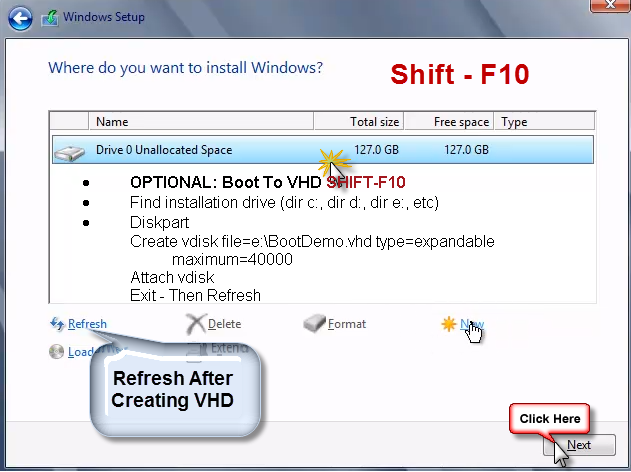
SHIFT-F10 to open a command prompt window
Find installation drive (dir c:, dir d:, dir e:, etc)
Diskpart to open the Disk Partition Utility (the first four lines below are all the same command and must run on the same line; separated here to make it easier to read)
Create vdisk file=e:BootDemo.vhd type=expandable maximum=40000
Attach vdisk
Exit
Then Refresh on the Windows Setup Screen